Skip to primary content
Skip to secondary content

SharePointTechnicalSupport

Troubleshooting Steps SharePoint Online Support, SharePoint Training & SharePoint Help

Main menu

  • Home
  • SharePoint
  • YouTube
  • Author

Category Archives: Userprofile

SHAREPOINT 2013 ERROR RUNNING UPDATE-SPPROFILEPHOTOSTORE

Posted on 05/11/2016 by Deviprasad Panda
Reply
Error :
I am attempting to import user profile pictures from Active Directory but when running the  Update-SPProfilePhotoStore cmdlet it generates an error.  Here is the command I am running:
Update-SPProfilePhotoStore  -CreateThumbnailsForImportedPhotos 1 -MySiteHostLocation http://mysite.mydomain.local
and this is the error message:
UserProfileApplicationProxy.ApplicationProperties ProfilePropertyCache does not have
updatespprofilephotostore_error
Solution:

I discovered that this error was generated because the user account running the command did not have the appropriate permissions in the User Profile Service Application (Central Administration ->Application Management -> Manage Service Applications -> User Profile Service -> Permissions).

Share this:

  • Share on X (Opens in new window) X
  • Share on Facebook (Opens in new window) Facebook
  • Share on WhatsApp (Opens in new window) WhatsApp
  • Email a link to a friend (Opens in new window) Email
  • Share on Telegram (Opens in new window) Telegram
  • Share on LinkedIn (Opens in new window) LinkedIn
  • Share on Tumblr (Opens in new window) Tumblr
  • Share on Pinterest (Opens in new window) Pinterest

Like this:

Like Loading...
Posted in SharePoint 2013, User Profile, Userprofile | Tagged SharePoint 2013, UserProfile | Leave a reply

“Invalid URI: The URI is empty. Contact your system administrator for help in resolving this problem” SharePoint 2013

Posted on 09/12/2015 by Deviprasad Panda
Reply

NCI had a task to create a proof of concept environment for SharePoint 2013 for a presentation to a top level exec. Installed and Configured a SharePoint 2013 farm on couple of VM’s with dedicated WFE/APP and SQL Server boxes, as this will be used as a POF and the reqcuirements were not clear how long the boxes will be used. MS has released the deployment guide for 2013 must read before thinking of creating a new farm.

Created a new web application on the new farm and a root level Site Collection based on Team Site Template. Till this moment everything was looking good. On accessing the Site got the following error :

SharePoint returned the following error: Invalid URI: The URI is empty. Contact your system administrator for help in resolving this problem.

My first encounter with an issue on 2013 on a vanilla environment, thought it would be good to have this as a reference.

Invalid URI

To resolve this, I had to create and configure my site i.e.

Created a new web app for my site
Created the my site host site collection as the root
Provisioned the User Profile Service App
Configured the My Site URL in Setup My Site in User Profile Service App
IISRESET
On accessing the Team Site didn’t find the error.

Each environment is different and unique, ULS Log viewer was the key to identify and troubleshoot this.

Share this:

  • Share on X (Opens in new window) X
  • Share on Facebook (Opens in new window) Facebook
  • Share on WhatsApp (Opens in new window) WhatsApp
  • Email a link to a friend (Opens in new window) Email
  • Share on Telegram (Opens in new window) Telegram
  • Share on LinkedIn (Opens in new window) LinkedIn
  • Share on Tumblr (Opens in new window) Tumblr
  • Share on Pinterest (Opens in new window) Pinterest

Like this:

Like Loading...
Posted in SharePoint 2013, User Profile, Userprofile | Tagged Invalid URI, SharePoint 2013, UserProfile | Leave a reply

PowerShell Script to get all the Active Directory groups in your SharePoint Farm

Posted on 01/05/2015 by Deviprasad Panda
Reply

At a client recently, I was tasked to create an inventory of all the Active Directory Groups that give access to a SharePoint site! I built it mostly from scratch, so here it is as well as some explanations to help you use it:

function WriteLogs ($message) {
$message | Out-File $logfile -append
}

$logfile = “C:ADGroupInventorygrouplist.txt”
Write-Host “Starting Group Script inventory”
$was = Get-SPWebApplication

foreach ($wa in $was)
{
$webappUrl = $wa.url
Write-Host “Starting to look in $webappUrl”
$spWebApp = Get-SPWebApplication $wa.url
foreach($site in $spWebApp.Sites)
{
$siteurl = $site.url
Write-Host “Going into SiteCollection $siteurl”
$group = $site.RootWeb.SiteUsers
foreach ($grp in $group)
{

Ensure the item is a domain group

if($grp.IsDomainGroup -eq “True”)
{
$groupname = $grp.name
WriteLogs “$groupname”
}
}
}
}

  • First of all, change the $logfile variable to a folder that exists to make sure the logs work.
  • Second, in the Central Administration, give yourself “Full Control” in the Web Application User Policy. This will make sure that you won’t have any access denied when you go through each and every site collection in your farm.

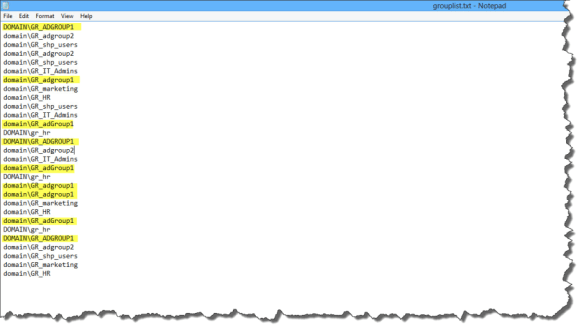
  • Afterwards, open SharePoint Management Shell as an Administrator, and run the script. Depending of the size of you farm, it shouldn’t take too long, and you should see progress of every site being scanned on the screen. At the end, you will have a text file looking like this:
PowerShell

PowerShell

You will notice in the screenshot that some group names are repeated, as well as some of them are in capital and some of them are lowercase.
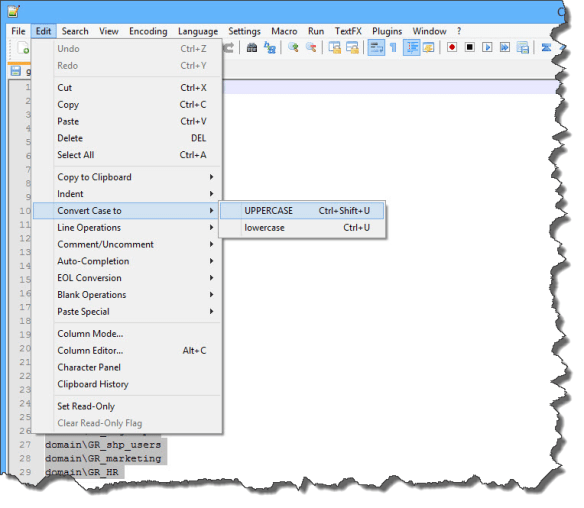
  • So, I used NotePad++ to get all the unique group names!

First of all, go in Edit > Convert Case to > Upercase!

You will notice in the screenshot that some group names are repeated, as well as some of them are in capital and some of them are lowercase.

get all the Active Directory groups in your SharePoint Farm

get all the Active Directory groups in your SharePoint Farm

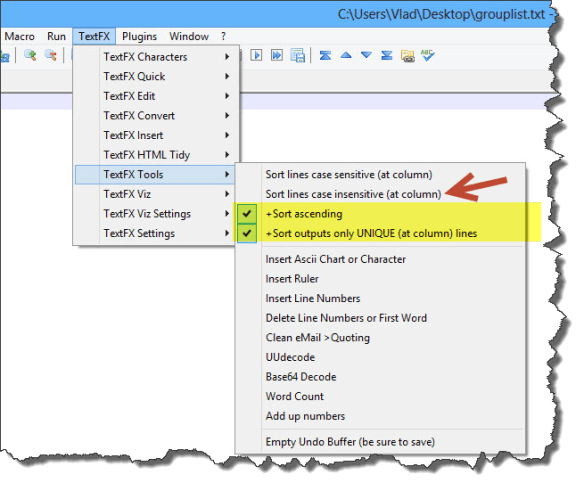
To get unique lines, you will need the TextFX plugin. This used to be included in older versions of Notepad++, but if you have a newer version, you can add it from the menu by going to Plugins -> Plugin Manager -> Show Plugin Manager -> Available tab -> TextFX -> Install. In some cases it may also be called TextFX Characters, but this is the same thing.

After the plugin is installed, go in TestFX Tools and check the “sort ascending” and “sort outputs only UNIQUE” lines. Afterwards, click the “Sort lines case insensitive at column”. (make sure that you do Ctrl+a in the file to select all the lines before clicking).
get all the Active Directory groups in your SharePoint Farm

get all the Active Directory groups in your SharePoint Farm

Now, your Notepad++ will only show the unique group names in your SharePoint Farm!

get all the Active Directory groups in your SharePoint Farm

get all the Active Directory groups in your SharePoint Farm

Drop a comment if this helped!

Share this:

  • Share on X (Opens in new window) X
  • Share on Facebook (Opens in new window) Facebook
  • Share on WhatsApp (Opens in new window) WhatsApp
  • Email a link to a friend (Opens in new window) Email
  • Share on Telegram (Opens in new window) Telegram
  • Share on LinkedIn (Opens in new window) LinkedIn
  • Share on Tumblr (Opens in new window) Tumblr
  • Share on Pinterest (Opens in new window) Pinterest

Like this:

Like Loading...
Posted in User Profile, Userprofile | Tagged Active Directory, active-directory-group, Get list of all users, powershell script, powershellscript, SharePoint 2013 | Leave a reply

Follow Blog via Email

Enter your email address to follow this blog and receive notifications of new posts by email.

Join 9 other subscribers
 

Loading Comments...
 

You must be logged in to post a comment.

    %d