change log timer Job is not cleaning up expired entries in eventcache table sharepoint

In SharePoint every content database contains an EventCache table that is the “change log” for objects contained in the database. Each row in the table is depicting a change in an object. Columns in the table contain information such as the date and time of a change, the type of object that was changed, the nature of the change, and a unique identifier for the object.

Sharepoint has a “Change Log” Timer job for each web-application which is scheduled to run on a Weekly basis. This job removes expire entries from the Change log of the respective web-application.

Expiration of the change logs will happen based on the ChangeLogExpirationEnabled and ChangeLogRetentionPeriod properties of the web application. Timer job called “Immediate alerts” which then processes all the events in the change log and & send out alert to users who have subscribed alerts for. This timer job then marks the EventCache entry as processed and updates the last processed event details in EventBatches table

There are situations I have seen where the Event cache table is huge (millions of rows) & they are not being cleaned up as expected. Even when you detach the database from SharePoint & attach it back with –clearchangelog switch the EventCache table is not purged.

One of the reasons this happens is because the “Immediate Alert” timer job is disabled. This would lead to alerts being unprocessed & the Change Log Cleanup job will ignore the unprocessed entries.

One needs to Simply Enable Immediate alerts timer job web application by going to Central admin, Monitoring and Review job definitions page.

Note: Immediate alert job will process couple of 1000s of record at each run. If there are millions of records to be processed and cleaned up, then you may have to schedule the immediate alert and Change log timer jobs to run more frequently than the default schedules.

Error while loading Infopath form ” An error occurred while trying to connect to a web service ” SharePoint 2010

Error :

We are getting below Error while loading Infopath form in SharePoint 2010:

error connecting webservice infopatherror-1

error connecting webservice infopatherror-1

Solution :

This has nothing to do with Infopath forms data connection or republish.

We have to make an entry in HOST file for each of WFE’s & adding site binding in the IIS web site for the web application having issue. This fixed the issue.

error connecting webservice infopatherror-2

error connecting webservice infopatherror-2

error connecting webservice infopatherror site binding

error connecting webservice infopatherror site binding

Clear configuration cache SharePoint

[siteorigin_widget class=”WordAds_Sidebar_Widget”][/siteorigin_widget]
[siteorigin_widget class=”WordAds_Sidebar_Widget”][/siteorigin_widget]
If you experience issues with timer jobs failing to complete and receiving errors while trying to run psconfig, Clear configuration cache SharePoint on the farm is a possible method for resolving the issue.

The config cache is where we cache configuration information (stored in the config database) on each server in the farm.

Caching the data on each server prevents us from having to make SQL calls to pull this information from the configuration database.Sometime this data can become corrupted and needs to be cleared out and rebuilt.

If you only see a single server having issues,only clear the config cache on that server,you do not need to clear the cache on the entire farm. To do a single server, follow the steps below on just the problem server.

To clear the config cache on the farm, follow these steps:

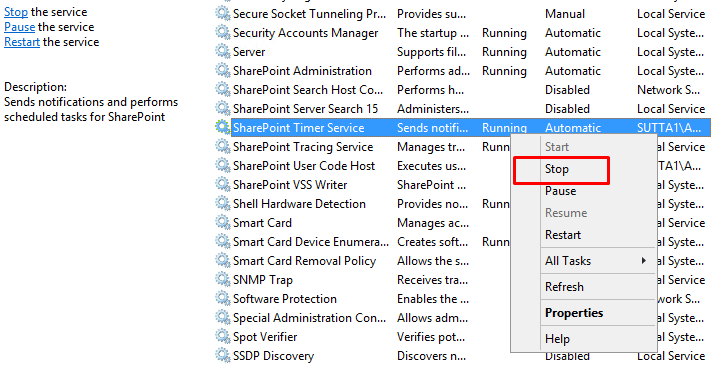
1. Stop the OWSTIMER service on ALL of the servers in the farm.

stop-timer-service

2. On the Index server, navigate to:
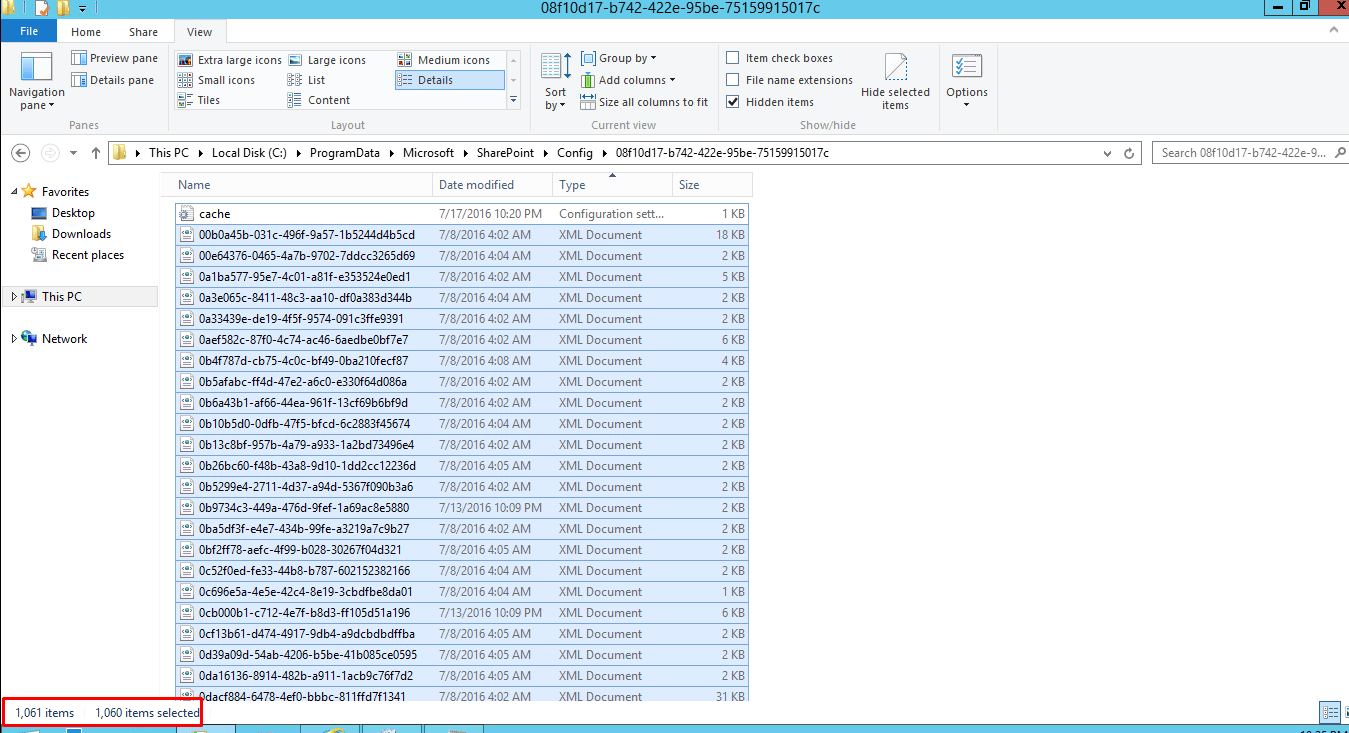
\ProgramData\Microsoft\SharePoint\Config\GUID and delete all the XML files from the directory.

3. Delete all the XML file in the directory. NOTE: ONLY THE XML FILES, NOT THE .INI FILE.

Clear configuration cache SharePoint

4. Open the cache.ini with Notepad and reset the number to 1. Save and close the file.

change-id

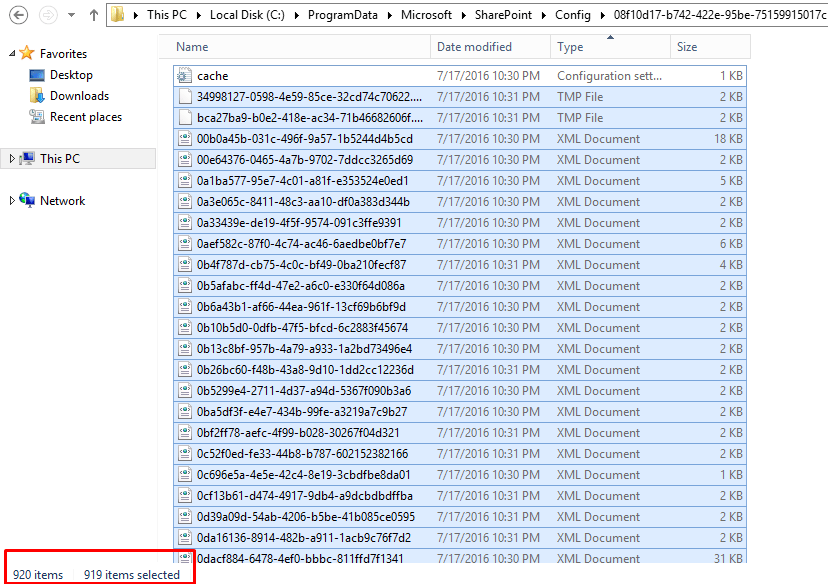
5. Start the OWSTIMER service on the Index server and wait for XML files to begin to reappear in the directory.

6. After you see XML files appearing on the Index server, repeat steps 2, 3 & 4 on each query server, waiting for XML files to appear before moving to subsequent servers.

timer3

7. After all of the query servers have all been cleared and new .xml files have been generated, proceed to the WFE and Application servers in the farm, following steps 2, 3, 4 and 5 for each remaining server.