change maximum upload file size limit in sharepoint

maximum upload file size limit need to increase or decrease in sharepoint when we receive request from user. User facing issue like “file size exceeds the limit allowed” when trying to upload file of size large. Then user request to increase sharepoint upload file size limit for site. SharePoint administrator can follow any one of the two methods below.

Advertisements
  • Increase file size upload in sharepoint using UI method
  • change upload file size limit using powershell

Increase file size upload limit using UI method

Follow step by step procedure as below to increase sharepoint upload file size limit for a site using UI method.

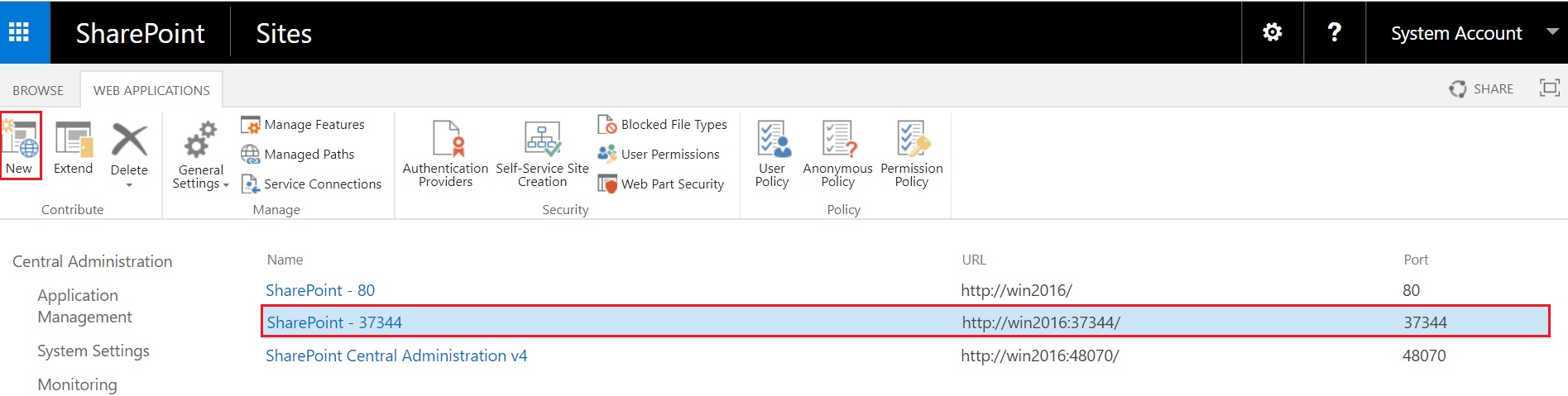
manage web application in sharepoint 2019
Advertisements
  • Selelct the web application for which you want to change the file size limit.
  • Click on “General Settings” from ribbon.
general settings in manage web application sharepoint 2019
  • One windows dialog box will open. Scroll down and identify the option “Maximum Upload Size”.
  • Edit the value present under Maximum Upload Size to any value with in default value threshold limit of maximum uploading file size 10 gb.
Advertisements
maximum upload file size limit in sharepoint 2019
Advertisements

change file size upload limit using powershell

we can use powershell to change the limit of maximum upload file size. Use the command below to apply the chnage.

$webApp = Get-SPWebApplication http://win-q2repghf9du:44179/
$webApp.MaximumFileSize = 10240
$webApp.Update()
increase upload size limit in sharepoint 2019
Advertisements

Default threshold limit for uploading a maximum file size is 10gb. we have to modify and keep the modified value with in this limit of 10 gb. Higher the value of Maximum Upload Size, impact of performance in sharepoint server will be high.

Advertisements

Dismount Mount content database in sharepoint 2019 using powershell

As a sharepoint administrator you must be facing regular tasks to Dismount Mount content database in sharepoint 2019 using powershell. This is most common and frequest task everyone faces.

User requests to restore content database from sharepoint production environment for a particular date and time in UAT environment. In this case we use this content database back up and restore method by help of sql server team. After back and restore completed by sql team, as a sharepoint administrator we need to dismount the content database from web application and mount content database to web application at the destination location UAT.

Advertisements

How to mount content database in sharepoint web application, attach content database, dismount content database, detach content database, backup content database and restore to another content database, move site collection from one site collection to another site collection, content database upgrade from one sharepoint version to another sharepoint version, migrate site collection, back up site in sharepoint and restore in another sharepoint environment, move site collection. All these questions have these below activity as solution.

Request SQL database team to back up and restore with details as below.

Advertisements

Source Environment Production

Source WebApplication : https://Prod-sharepointtechnicalsupport.com
Prod Content database : WSS_Content_39760_Prod
Database Server : MSSQL-PROD
Advertisements

Destination Environement UAT

Destination WebApplication : https://UAT-sharepointtechnicalsupport.com
UAT Content database : WSS_Content_39760_UAT_22may2020   # This will be the name of restored Db
Database Server : MSSQL-UAT
Permission : Permissin maping WSS_Content_46298_2Jan2020 present in same server MSSQL-UAT and farm account "Administrator" should have admin permission in the content database.
Advertisements

As a sharepoint administrator, you need to dismount (Previously there must be some content Db attached in the UAT site for example: WSS_Content_46298_2Jan2020) and mount the restored content database (WSS_Content_39760_UAT_22may2020) in destination environment UAT.

You need to use the commands “Dismount-SPContentDatabase” and “Mount-SPContentDatabase” to finish the task.

Dismount-SPContentDatabase WSS_Content_46298_2Jan2020
Mount-SPContentDatabase "WSS_Content_39760_UAT_22may2020" -DatabaseServer "MSSQL-UAT" -WebApplication https://UAT-sharepointtechnicalsupport.com
Dismount Mount content database in sharepoint 2019
Advertisements

Follow the video below to get detail steps.

Advertisements

web application in SharePoint

web application in SharePoint

A web application in SharePoint is any individual IIS website created to access and use SharePoint Server technologies and services. Each web application has its own domain name and use zones to contain and apply different access and policy rules for different sets of users. This brings benefits while managing large numbers of SharePoint users who need to access the same site but view and interact with different levels of content.

web-application-1331x801
web application in SharePoint

Planning for web applications should center on the need to either share or isolate specific web content. For instance, different content can be presented for authenticated vs anonymous users or information can be contained so that internal employees, customers, and partners all access different types of web content. Policies for a web application let you set security and permissions at the level of the web application. You can set policies in Active Directory Domain Services users and user groups but not in SharePoint groups. Best practice suggests using these features to manage large numbers of users in user groups.

Once you create web application you will find one IIS website and one application pool under IIS Manager, as mentioned earlier web application is an iis website.

web-application-iis-sites-1068x478

web application content database “WSS_Content” will be created under SQL database.

content database in sharepoint
web-application-database-wss-content-601-739

Default resource throttling settings for web application is as below when you select “web application” and click on “resource throttling”

resource-throttling-1758x391
List View ThresholdSpecify the maximum number of items that a database operation can involve at one time. Operations that exceed this limit are prohibiteddefault 5000,limit is 10000
List View Threshold for Auditors and AdministratorsSpecify the maximum number of items that an object model database query can involve at one time for users to whom you grant sufficient permissions through Security Policy20000
List View Lookup ThresholdSpecify the maximum number of Lookup, Person/Group, or workflow status fields that a database query can involve at one time12
List Unique Permissions ThresholdSpecify the maximum number of unique permissions that a list can have at one time.50000
Change LogSpecify how long entries are kept in the change log.120

below screenshot is the default after creation of web application

resource-throttling-1022x727

Click on the ribbon, select “Authentication Providers” to see authentication provider. The option “Self-service Site Creation” allows “Users can create their own Site Collections”. Click on “Permission Policy” to see default permission policy level, also can “Add permission policy level”. Click on “User Policy” to apply permission policy for web application.

web-application-settings-1763x905

click on the link to see Software boundaries and limits for SharePoint Server 2016.