Dismount Mount content database in sharepoint 2019 using powershell

As a sharepoint administrator you must be facing regular tasks to Dismount Mount content database in sharepoint 2019 using powershell. This is most common and frequest task everyone faces.

User requests to restore content database from sharepoint production environment for a particular date and time in UAT environment. In this case we use this content database back up and restore method by help of sql server team. After back and restore completed by sql team, as a sharepoint administrator we need to dismount the content database from web application and mount content database to web application at the destination location UAT.

Advertisements

How to mount content database in sharepoint web application, attach content database, dismount content database, detach content database, backup content database and restore to another content database, move site collection from one site collection to another site collection, content database upgrade from one sharepoint version to another sharepoint version, migrate site collection, back up site in sharepoint and restore in another sharepoint environment, move site collection. All these questions have these below activity as solution.

Request SQL database team to back up and restore with details as below.

Advertisements

Source Environment Production

Source WebApplication : https://Prod-sharepointtechnicalsupport.com
Prod Content database : WSS_Content_39760_Prod
Database Server : MSSQL-PROD
Advertisements

Destination Environement UAT

Destination WebApplication : https://UAT-sharepointtechnicalsupport.com
UAT Content database : WSS_Content_39760_UAT_22may2020   # This will be the name of restored Db
Database Server : MSSQL-UAT
Permission : Permissin maping WSS_Content_46298_2Jan2020 present in same server MSSQL-UAT and farm account "Administrator" should have admin permission in the content database.
Advertisements

As a sharepoint administrator, you need to dismount (Previously there must be some content Db attached in the UAT site for example: WSS_Content_46298_2Jan2020) and mount the restored content database (WSS_Content_39760_UAT_22may2020) in destination environment UAT.

You need to use the commands “Dismount-SPContentDatabase” and “Mount-SPContentDatabase” to finish the task.

Dismount-SPContentDatabase WSS_Content_46298_2Jan2020
Mount-SPContentDatabase "WSS_Content_39760_UAT_22may2020" -DatabaseServer "MSSQL-UAT" -WebApplication https://UAT-sharepointtechnicalsupport.com
Dismount Mount content database in sharepoint 2019
Advertisements

Follow the video below to get detail steps.

Advertisements

Connectors in SharePoint

SharePoint connectors

Connectors Content repository

below are the default Connectors found in SharePoint.

Bcs – Business Connectivity Services (internal protocol)
Bcs2 – Business Connectivity Services URLs (internal protocol)
File – File shares
http – Web sites
https – Web sites over Secure Sockets Layer (SSL)
Notes – Lotus Notes databases
Rb – Exchange public folders for versions prior to Microsoft Exchange Server 2003
Rbs – Exchange public folders over SSL for versions prior to Exchange Server 2003
Sps – People profiles in Microsoft Office SharePoint Portal Server 2003
Sps3 – People profiles in Microsoft Office SharePoint Server 2007
Sps3s – People profiles in Office SharePoint Server 2007 over SSL
Spss – People profiles in SharePoint Portal Server 2003 over SSL
Sts3Windows SharePoint Services 3.0 and Office SharePoint Server 2007 sites
Sts3s – Windows SharePoint Services 3.0 and Office SharePoint Server 2007 sites over SSL
Sts4 – Microsoft SharePoint Foundation 2010, SharePoint Server 2010, SharePoint Foundation 2013, SharePoint Server 2013, and SharePoint Server 2016 sites
Sts4s – SharePoint Foundation 2010, SharePoint Server 2010, SharePoint Foundation 2013, SharePoint Server 2013, and SharePoint Server 2016 sites over SSL.

[siteorigin_widget class=”WordAds_Sidebar_Widget”][/siteorigin_widget]
[siteorigin_widget class=”WordAds_Sidebar_Widget”][/siteorigin_widget]

Managed Path sharepoint

Let me document the Frequently Asked Questions on SharePoint Managed Paths during my training sessions:

What is Managed Path in SharePoint?

A managed path is a location within a web application in which you can have site collections. When you create a web application, there are two managed paths created with it. The first managed path is called the Root “/” path of explicit inclusion type. The second is called “sites” with wildcard inclusion path. SharePoint 2010 My Site host comes with “Personal” Wildcard managed path.

Why We need Managed Paths in SharePoint?
Managed Paths in SharePoint used to group multiple sites based on some criteria. Also helps to maintain a logical structure in SharePoint. Say, You want to group all Sales department sites, then you can have: http://company/sales/Site1/ , http://company/sales/Site2/, etc.

SharePoint managed path examples:

Lets take an example. A typical SharePoint URL could be: “http://company.com/sites/Sales/apac/”
Where

  • http://company.com – Web Application
  • Sites–  Managed path
  • Sales – Site collection
  • apac – Sub-site

Explicit vs Wildcard
There are two Types of Managed Paths we can create:

  1. Explicit inclusion : Path can be explicitly used for only one site collection. (E.g. http://company/sites/hr) and no site collections can be created underneath the path. (But sub-sites can be created under site collection)
  2. Wildcard inclusion: If you want to create site collections underneath a specific path, choose “Wildcard” (for example, “Sites” in http://server/sites/). Unlimited site collections can be created under the given path.

managedpath

managedpath

How to Configure Managed Paths for SharePoint 2010 Web Applications?

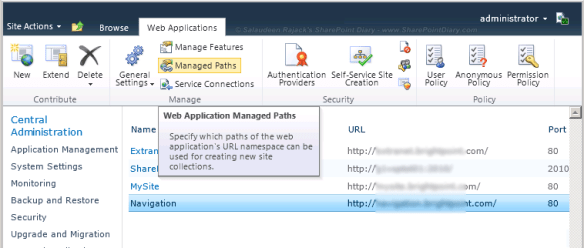
Managed Paths are defined at web application level. You can have different paths for different web applications. They cannot be defined for host header site collections. To define managed path in SharePoint 2010, Go to:

  1. Central Administration >> Application Management.
  2. In Application Management page, click on Manage Web Applications
  3. Click the Web application for which you want to configure Manage Paths
  4. Now from the ribbon, click Managed Paths.
  5. From here you can configure Managed Paths for a particular web application.
  6. Once you are done with managed paths, click OK.

managed path

managed path

Nested Managed paths

is it possible to nest a managed path under another managed path? Yes! You can create nested managed paths! Say for E.g. You create a Managed Path “/sites/” , then You create managed path as “/sites/sales”. Now you can create site collections under each of these paths.

But you cannot create a site collection under /sites/  as “Sales”, because once you create the managed path “Sales” under “Sites” it is marked as reserved!

SharePoint Managed Path Limits

Its a best practice to have SharePoint managed paths < 20. As per SharePoint 2010 Software boundaries and limit  20 Managed Paths can be created per Web application.You can expect performance issues if you exceed this limit!

Can I Create Site collections Under Root?

By default, Root Managed Path (/) is created as Explicit inclusion, which means you can create only one site collection at the root of the web application. However you can delete and Re-create it with Wildcard inclusion to enable site collections under Root.

How to Change site collection managed path
If you want to change the managed path of your site collection, You have to:

  • Backup your site collection
  • Delete your site collection
  • Restore your site collection with new managed path
Refer my post: How to Change Site Collection URL for step by step instructions.

What if I delete the Managed path in use?
Answer: Your SharePoint Sites under the specific managed path will result: HTTP 404 Page Not Found!

SharePoint Managed path not in list?

Managed Path Not available in Create Site Collection Page, After deleting the site collection which was occupying the specified managed path already ? Refer my article for the solution: Managed Path Not available

How to Create/Delete SharePoint Managed path Programmatically with C# object model or Powershell? 

To Manage SharePoint managed paths in C# object model and in PowerShell, Refer my article: Programmatically Get/Create/Delete Managed Paths in SharePoint