How to Fix SharePoint 2013 Slow Performance

You may have noticed that the hardware requirements for SharePoint 2013 Server are quite hefty. Many SharePoint 2013 performance issues have been attributed to lack of resources. Although meeting the minimum performance specs is highly recommended, you can tweak SharePoint 2013 to work with less resources.

The following tips are some that I have collected while looking for ways to improve SharePoint 2013 performance. Some of these will help SharePoint’s performance however, my experience has been that unless you have a server that meets the minimum SharePoint 2013 requirements, the Search function will still bring your SharePoint server to a crawl.

The only way that I have been able to run SharePoint efficiently on a less than ideal server is to completely disable the search feature.

If however, you want to try and tweak SharePoint before completely turning off the search service, be aware that performance results will vary depending on your server’s RAM and CPU speed.

Stop Disable the SharePoint 2013 Search Service

If your SharePoint 2013 is running like a 3 legged turtle, temporarily disable the Search Host Controller and the Search Server. This will render your SharePoint Server usable until you complete these tasks. Note: The SharePoint Timer Service will re-start both the Search Host Controller and the Server Search service, so you may want to temporarily disable the Timer Service as well.

The services to disable are SharePoint Search Host Controller and SharePoint Server Search 15. You can find these services by running services.msc from a command prompt. Once you have finished, don’t forget to enable them again.

Here are the steps to fix SharePoint 2013 performance issues

  • Update SharePoint 2013 March patch update
  • Reduce the search crawl time interval and properly to configure SharePoint 2013 Search
  • Reduce Noderunner’s RAM utilization
  • Clear the search database and re-initialize the SharePoint 2013 search crawler

Update SharePoint with March 2013 Patch Update KB2767999

Updating SharePoint with the March 2013 Patches fixes search-related performance problems. Note that you should disable the SharePoint Timer Service first, then SharePoint Search Host Controller and the SharePoint Server Search before installing the updates. (Detailed instructions here)

· SharePoint Server 2013: http://support.microsoft.com/kb/2767999

· SharePoint Foundation 2013: http://support.microsoft.com/kb/2768000

How to Reduce the Search Feature Crawl Time Interval and Configure SharePoint 2013 Search

By default, the search feature is set to crawl every 20 minutes. This is nice if you have a monster server, but if you are not so lucky, reducing the crawl rate will yield much better performance. If the SharePoint server hosts a large content database, it may take more than 20 minutes to index. By the time the crawler is finished, it’s time to start again! This leaves you with a perpetually crawling indexing function.

To reduce the search index time interval:

Open Central Administration > General Application Settings > Farm Search Administration

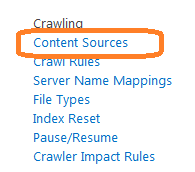
Click on Search Service Application and then on the Content Sources menu link.

1 

2

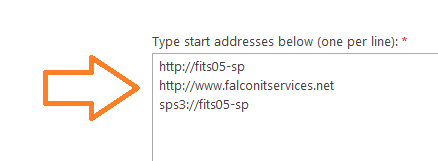
Locate your site, click on the drop down menu and then select edit. In the start address, make sure that you have entries for your FQDN, your default Web as well as the SPS3 Protocol Handler. For example: if your SharePoint server’s NetBIOS name is SP01, then you should have an entry for http://SP01 and SPS3://SP01 in addition to your Web site FQDN. This is necessary for the search feature to properly work. If the search index does not properly work, continual searches will damper performance. Once search is working properly, server performance will greatly increase.
3

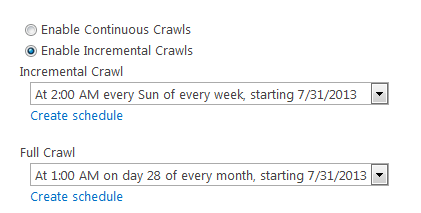
Next, set a full and incremental crawl schedule so that the crawl takes place during off-peak usage times. The older your server, the less frequent you may want to make the crawls.
4

Once you have finished, click OK to save the changes.

How to Reduce noderunner.exe’s RAM Utilization

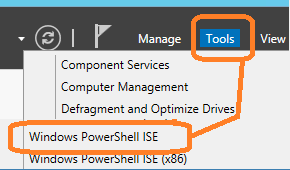
On the SharePoint 2013 server, open Server Manager -> Tools -> Windows PowerShell ISE
5

Click File -> Open and navigate to

C:Program FilesMicrosoft Office Servers15.0SearchRuntime1.0

Open noderunner.exe.config

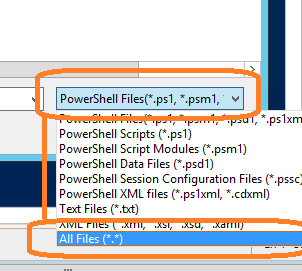
If you cannot see noderunne.exe.config, click on the drop down next to file name and select All Files (.)
6

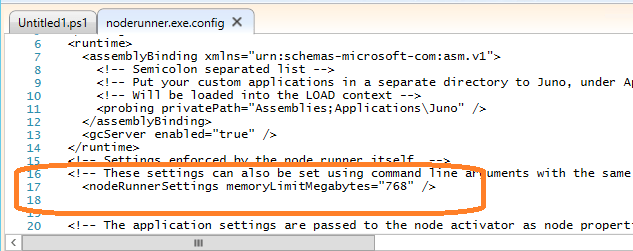
Modify the following line:


7

Noderunner.exe is set to “0” by default, which means unlimited memory usage. Change the “0” to a number in megabytes to limit the total amount of ram that it can use.

For example:

Click save and exit. Restart the SharePoint server.

You can greatly increase SharePoint 2013 server performance by stopping the following services:

· SharePoint Search Host Controller

· SharePoint Search Server 15

Of course, this should be done if you are not using the search service. If you are, this may not be an option.

If that’s the case, your best option may be to increase your server’s available RAM to meet or exceed the minimum requirements. You can also mitigate the performance effects caused by the search service if you reduce the amount of Ram available to noderunner.exe however this is less desirable than stopping the search services.

Reset the Search Index and Initialize a Full Crawl

Finally, re-initialize the search index to clear out the database and re-initialize the crawl. To do this, go to Central administration –> General Application Settings –> Farm Search Administration –> Search Service Application. Select Index Reset from the crawling menu and then click on the reset now button.

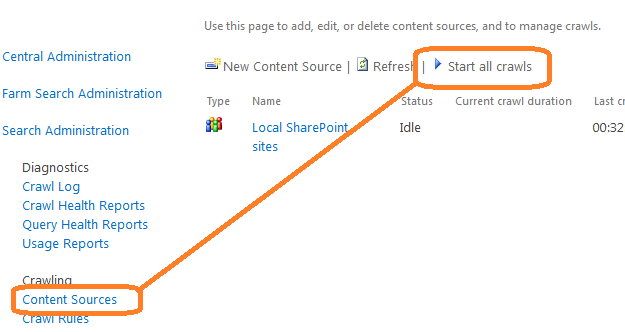
Once you have reset the index, click on content sources and select start all crawls.
8

storage related performance issues sharepoint

Here are five storage-related issues in SharePoint that can kill performance, with tips on how to resolve or prevent them.

Problem #1:

Unstructured data takeover. The primary document types stored in SharePoint are PDFs, Microsoft Word and PowerPoint files, and large Excel spreadsheets. These documents are usually well over a megabyte.

SharePoint saves all file contents in SQL Server as unstructured data, otherwise known as Binary Large Objects (BLOBs). Having many BLOBs in SQL Server causes several issues. Not only do they take up lots of storage space, they also use server resources.

Because a BLOB is unstructured data, any time a user accesses a file in SharePoint, the BLOB has to be reassembled before it can be delivered back to the user – taking extra processing power and time.

Solution:

Move BLOBs out of SQL Server and into a secondary storage location – specifically, a higher density storage array that is reasonably fast, like a file share or network attached storage (NAS).

Problem #2:

An avalanche of large media. Organizations today use a variety of large files such as videos, images, and PowerPoint presentations, but storing them in SharePoint can lead to performance issues because SQL Server isn’t optimized to house them.

Media files, especially, cause issues for users because they are so large and need to be retrieved fairly quickly. For example, a video file may have to stream at a certain rate, and applications won’t return control until the file is fully loaded. As more of this type of content is stored in SharePoint, it amplifies the likelihood that users will experience browser timeout, slow Web server performance, and upload and recall failures.

Solution:

For organizations that make SharePoint “the place” for all content large and small, use third-party tools specifically designed to facilitate the externalization of large media storage and organization. This will encourage user adoption and still allow you to maintain the performance that users demand.

Problem #3:

Old and unused files hogging valuable SQL Server storage. As data ages, it usually loses its value and usefulness, so it’s not uncommon for the majority of SharePoint content to go completely unused for long periods of time. In fact, more than 60 to 80 percent of content in SharePoint is either unused or used only sparingly in its lifespan. Many organizations waste space by applying the same storage treatment for this old, unused data as they do for new, active content, quickly degrading both SQL Server and SharePoint performance.

Solution:

Move less active and relevant SharePoint data to less expensive storage, while still keeping it available to end users via SharePoint. In the interface, it helps to move these older files to different parts of the information architecture, to minimize navigational and search clutter. Similarly, we can “unclutter” the storage back end.

A third-party tool that provides tiered storage will enable you to easily move each piece of SharePoint data through its life cycle to various repositories, such as direct attached storage, a file share, or even the cloud. With tiered storage, you can keep your most active and relevant data close at hand, while moving the rest to less expensive and possibly slower storage, based on the particular needs of your data set.

Problem #4:

Lack of scalability. As SharePoint content grows, its supporting hardware can become underpowered if growth rates weren’t accurately forecasted. Organizations unable to invest in new hardware need to find alternatives that enable them to use best practices and keep SharePoint performance optimal. Microsoft guidance suggests limiting content databases to 200GB maximum unless disk subsystems are tuned for high input/output performance. In addition, huge content databases are cumbersome for backup and restore operations.

Solution:

Offload BLOBs to the file system – thus reducing the size of the content database. Again, tiered storage will give you maximum flexibility, so as SharePoint data grows, you can direct it to the proper storage location, either for pure long-term storage or zippy immediate use.

It also lets you spread the storage load across a wider pool of storage devices. This approach keeps SharePoint performance high and preserves your investment in existing hardware by prolonging its useful life in lieu of buying expensive hardware. It’s simpler to invest in optimizing a smaller SQL Server storage core than a full multi-terabyte storage footprint, including archives.

Problem #5:

Not leveraging Microsoft’s data externalization features. Microsoft’s recommended externalization options are Remote BLOB Storage (RBS), a SQL Server API that enables SharePoint 2010 to store BLOBs in locations outside the content databases, and External BLOB Storage (EBS), a SharePoint API introduced in SharePoint 2007 SP1 and continued in SharePoint 2010.

Many organizations haven’t yet explored these externalization capabilities, however, and are missing out on significant storage and related performance benefits. However, native EBS and RBS require frequent T-SQL command-line administration, and lack flexibility.

Solution:

Use a third-party tool that works with Microsoft’s supported APIs, RBS, and EBS, and gives administrators an intuitive interface through SharePoint’s native Central Administration to set the scope, rules and location for data externalization.

In each of these five problem areas, you can see that offloading the SharePoint data to more efficient external storage is clearly the answer. Microsoft’s native options, EBS and RBS, only add to the complexity of managing SharePoint storage, however, so the best option to improve SharePoint performance and reduce costs is to select a third-party tool that integrates cleanly into SharePoint’s Central Administration. This would enable administrators to take advantage of EBS and RBS, choosing the data they want to externalize by setting the scope and rules for externalization and selecting where they want the data to be stored.


Improving SharePoint performance using SQL Server settings

SharePoint performance is a recursive problem and preoccupation. As a Database Administrator, we have to deal with SharePoint when configuring SQL Server databases.

In this article, I will propose a list of best practices in SQL Server settings aimed to reduce SharePoint performance issues.

Autogrowth

Do not keep the default value which is 1 MB. We can illustrate with a simple example why this is a bad idea.

When a document of 5 MB is uploaded, it means there are 5 Autogrowth which are activated. In fact, there are 5 allocations of space which must slow your system.

Moreover, your uploaded document will be fragmented across your different data files. This configuration will decrease your performance a second time.

To avoid performance issues and reduce fragmented data files, you should set the autogrowth value to a fixed number of megabytes.

My recommendation is 1024 MB for data files and 256 MB for log files. But keep in mind, this is a global recommendation. In fact, the bigger the database, the bigger the growth increment should be.

SQL Server disk cluster size

The default value of SQL Server is 4 KB. But in fact, it is nearly the worst value you can choose for this configuration!

Globally, 64 KB is a safe value. Indeed, the server reads 64 KB at the time and can deliver larger chunks of data to the SQL Server database.

TempDB Optimization

First, the TempDB recovery model should be set to simple. Indeed, this model automatically reclaims log space to keep space requirements small.

Also, you should put your TempDB on the fastest disks you have, because TempDB is heavily used by SharePoint. Do not let SQL Server use this disk for any other needs, except TempDB utilization!

Furthermore, each TempDB file should be 25% larger than the largest content database. Not many DBAs realize how a TempDB is used by SharePoint and to what extent a TempDB can grow!

Index Fragmentation

WSS_Content database, for example, is used to store site collection as well as lists and its tables are shared. Therefore, indexes are very important!

So do not forget to manage the fragmentation of your databases.

My recommendation is to perform a Reorganize when your fragmentation is between 10% and 30 % as well as a Rebuild index when your fragmentation is above 30%.

Take care about indexes with more than 1’000 pages!

Statistics

Do not enable Auto-Create Statistics on an SQL Server that supports SharePoint Server! Let SharePoint Server configure the required settings alone.

Auto-Create Statistics can significantly change the execution plan of a query from one instance of SQL Server to another.

Therefore, do not enable Auto-Update Statistics and use instead SharePoint Auto-Update capability instead.

SQL Server Memory Allocation

The default values of SQL Server for memory allocation are 0 MB for Minimum server memory and 2147483647 MB for Maximum server memory.

The default value of the Maximum server memory is not optimized at all!

You should set a custom value depending on the total amount of physical memory, the number of processors, and the number of cores.

To calculate your SQL Max Memory, I suggest you to read this article.

Recycle Bin

Be aware that items in the recycle Bin may affect the performance.

Moreover, after a certain limit of days or after a deletion, these items are moved to a second stage recycle bin that may also affect your performance.

As a result, you have to manage your recycle bin depending on your needs to ensure that the size of your recycle bin will not continue to grow out of control.

MAXDOP

The default value of your MAXDOP is 0. But for better performance, you should make sure that a single SQL Server process serves each request.

Therefore, you must set MAXDOP to 1.

Fill Factor

The default value is 0, which is equal to 100. It means that you do not provide space for index expansion.

But when a new row is added to a full index page, the Database Engine make a reorganization called Page Split.

Page Split can take time to perform, and can cause fragmentation increasing I/O operations.

I recommend to set a Fill Factor value of 80. It means that 20 % of each-level page will be left empty.

Therefore, you can support growth and reduce fragmentation.

Instant File initialization

This feature, when enabled, allows SQL Server to initialize database files instantly, without physically zeroing out each and every 8K page in the file.

Therefore, depending on the size of files you have, you can save a lots of time.

Conclusion

The default settings of the content database in SQL Server are pretty bad and far from what we really need. You should always opt for a pre-allocate size strategy and not rely on autogrowth.

Monitoring your databases for space and growth to avoid bad surprises is very important.

Also, do not forget to modify your model database for size allocation rules.

Ans if you do not want to suffer from bad performances, do not use the Auto-Shrink capability.