Internal server error exception when users perform a search in SharePoint

Symptoms

When users perform a search in a Microsoft SharePoint environment, they receive the following error message:

Internal server error exception:

Troubleshoot issues with Microsoft SharePoint Foundation

Additionally, the following critical exception may be written to the ULS log of the SharePoint Web front-end server:

Process: OWSTIMER.EXE (0x1CE0)

Product: SharePoint Foundation

Category: Topology

EvendID: 8031

Message:
An exception occurred while updating addresses for connected app {eaf6c00c-cc3f-460e-8bf2-ad9b991ea6ea_aa16845d-045a-46bc-bbc6-d701ff13950d}. The uri endpoint information may be stale. System.InvalidOperationException: The requested application could not be found at Microsoft.SharePoint.SPTopologyWebServiceApplicationProxy.ProcessCommonExceptions(Uri endpointAddress, String operationName, Exception ex, SPServiceLoadBalancerContext context) at Microsoft.SharePoint.SPTopologyWebServiceApplicationProxy.ExecuteOnChannel(String operationName, CodeBlock codeBlock) at Microsoft.SharePoint.SPTopologyWebServiceApplicationProxy.GetEndPoints(Guid serviceId) at Microsoft.SharePoint.SPConnectedServiceApplicationAddressesRefreshJob.Execute(Guid targetInstanceId) bf94139a-66f8-4aab-af31-406a5ebb6db9

Cause

This issue occurs when the Search service application proxy is associated with a web application but is not associated with any Search service applications in the farm.

Resolution

To allow users to search without receiving this error message, reassociate the web application with a valid Search service application proxy. A valid Search service application proxy will be associated with a Search service application in the Manage service applications option. To do this, follow these steps:

  1. Open Central Administration.
  2. Click Manage web applications.
  3. Select the affected web application.
  4. On the ribbon, click Service Connections.
  5. Under Configure Service Application Associations, select the valid Search service application proxy check box.

bini

How to reset a corrupt search index in SharePoint 2013 in case the reset index is not working

On a recent SharePoint 2013 deployment, I faced a strange issue, wherein the search index got corrupted and I was not able to reset the index. Although, I was able to get to the reset index screen and the reset index button was clickable, but each time it went into an infinite loop on clicking the reset index button, and the index was not reset.

After much banging our heads and googling around, I found a small piece of information that really helped and did the trick. Below is a step-wise approach to resolve such an issue.

Step-1
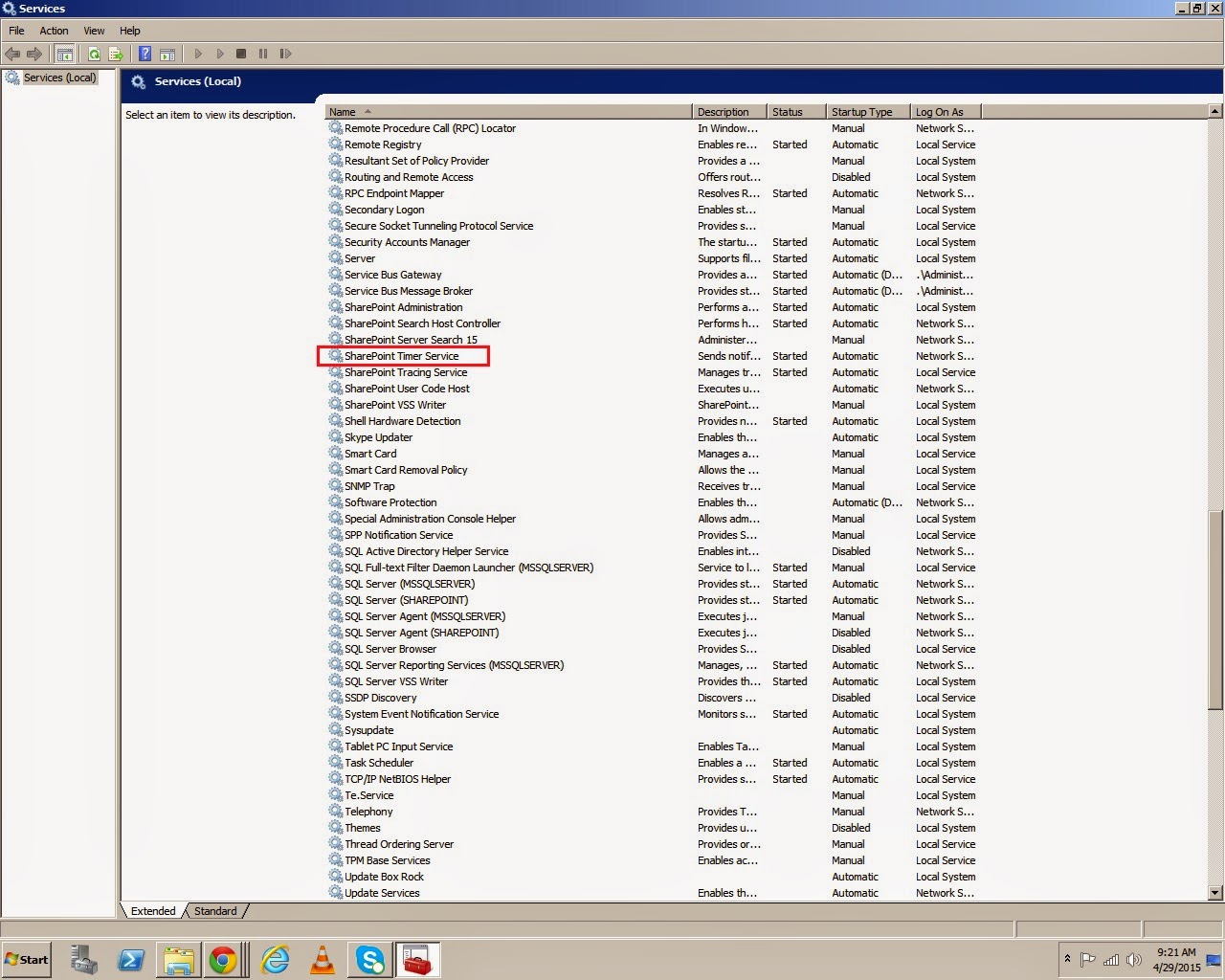
Stop the Windows SharePoint Services Timer service

timer

Step-2
Navigate to the cache folder in the following location: System Drive:ProgramDataMicrosoftSharePointConfig

Step-3
Locate the folder that has the file “Cache.ini”. There may be multiple GUID folders with cache.ini file

Step-4
Back up these folders with the Cache.ini file

Step-5
Delete all the XML configuration files in the GUID folder
Note: When you delete the xml files within the GUID folders, make sure that you do not delete the GUID folder and the Cache.ini file that is located in the GUID folder

xmlfiles

Step-6
Open the Cache.ini file and delete the content, replacing all the text with the number ’1′. Save the file and close
Step-7
Start the Windows SharePoint Services Timer service
After the above steps have been executed, make sure that the Cache.ini file contains some other value and not 1

resetcache

Administer search in SharePoint Server 2013

Manage the search schema in SharePoint Server 2013  

Learn how to view, add, edit, map, and delete crawled properties, crawled property categories and managed properties in the search schema.

Manage the Search Center  

Learn about pages that are created in a Search Center site in SharePoint 2013, and see articles about how to configure Web Parts.

Manage search relevance in SharePoint Server 2013  

Learn how you can configure settings to provide the most relevant search results.


Manage crawling in SharePoint Server 2013

  Learn how to crawl content that you want users to be able to search for in SharePoint 2013.
 

Manage the search topology in SharePoint Server 2013

Learn how to manage search components to scale out the search topology in SharePoint 2013.
 

View search diagnostics in SharePoint Server 2013

Learn about search and usage reports, query health reports, crawl health reports and the crawl log to analyze the health of the search system.
 

Enable search alerts in SharePoint Server 2013

Learn how to enable or disable search alerts.
 

Enable query logging in SharePoint Server 2013

Learn how to enable or disable query logging.
 

Export and import customized search configuration settings in Sharepoint Server 2013


Learn how to import and export customized search configuration settings.