Configure properties of the Search Box Web Part

When you create an Enterprise Search Center site collection as described in Create a Search Center site in SharePoint Server 2013, SharePoint 2013 creates a default search home page and a default search results page. In addition, several pages known as search verticals are also created. Search verticals are customized for searching specific content, such as People, Conversations, and Videos, and they display search results that are filtered and formatted for a specific content type or class.

The following pages are created in an Enterprise Search Center site collection:

  • default.aspx: the home page for the Search Center, and the page where end-users enter their queries.
  • results.aspx: the default search results page for the Search Center. It is also the search results page for the Everything search vertical.
  • peopleresults.aspx: the search results page for the People search vertical.
  • conversationresults.aspx: the search results page for the Conversations search vertical.
  • videoresults.aspx: the search results page for the Videos search vertical.
  • advanced.aspx: the search page where end-users can apply some restrictions to their search phrases — for example, limiting the search to an exact phrase.

These pages are located in the Pages library, and they contain Web Parts that you can customize to improve the end-user search experience. This article describes the Web Parts on these pages, and how you can configure the different Web Parts settings to improve how search results are displayed.

By default, the Web Parts on the search vertical pages (results.aspx, peopleresults.aspx, conversationresults.aspx, videoresults.aspx, advanced.aspx) are the same. However the query in the Search Results Web Part is configured differently for each search vertical page. For each search vertical page, the query in the Search Results Web Part is directed to a particular result source. This can be a result source that defines the search vertical or any result source that you want to direct queries to when you create a custom search vertical. For example, for the peopleresults.aspx search vertical page, the query in the Search Results Web Part is limited to the Local People Results (System) result source. For the videoresults.aspx search vertical page, the query in the Search Results Web Part is limited to the Local Video Results (System).

By default, the Search Box Web Part is used on the home page for the Search Center (default.aspx), and all search results pages (results.aspx, peopleresults.aspx, conversationresults.aspx, videoresults.aspx). By changing properties in the Search Box Web Part you can you can do the following:

  • Change the Web Part or page where the search results should be displayed — for example, a custom Search Results Web Part or a custom search results page.
  • Turn off query suggestions and people suggestions. For more information about query suggestions, see Manage query suggestions in SharePoint Server 2013
  • Display links to a search preference page and an advanced search page.
  • Change the display template that is applied to the Web Part.

To configure the properties of a Search Box Web Part      

  1. Verify that the user account that performs this procedure is a member of the Designers SharePoint group on the Enterprise Search Center site.
  2. On the Search Center site home page, click the Settings menu, and then click Edit Page.
  3. In the Web Part, click the Search Box Web Part Menu arrow, and then click Edit Web Part.
  4. In the Web Part tool pane, in the Properties for Search Box section, expand the Which search results page should queries be sent to section, and then do the following:
    • To display the settings that are defined on the Search Settings page, select the Use this site’s Search Settings check box.
    • To override the settings that are defined on the Search Settings page, clear the Use this site’s Search Settings check box, and then do the following:
      • To display search results in a Web Part on the page, in the section Send queries to other Web Parts on this page, select a Web Part.
      • Note:
        If there are no other Web Parts on a page, search results will be sent to the search results page as specified on the Search Settings page.
    • To send queries to a custom search results page, select Send queries to a custom results page URL, and then type the URL of the custom search results page.
    • Note:
      You can’t send queries to a custom search results page that uses a friendly URL.
  5. In the Web Part tool pane, in the Properties for Search Box section, expand the Query Suggestions section, and then do the following:
    • To disable query suggestions, clear the Show suggestions check box.
    • To specify additional properties for query suggestions, change the values in the following fields:
      • Number of query suggestions: How many query suggestions to display.
      • Minimum number of characters: How many characters the user must type before query suggestions are displayed.
      • Suggestions delay (in milliseconds): How many milliseconds elapse before query suggestions are displayed.
      • Number of personal favorites: How many query suggestions are displayed to the user under the text Are you looking for these again? in the search results. These suggestions are based on search results that the user has clicked previously. To disable personal favorite results, clear the Show personal favorite results check box.
    • To turn on people name suggestions, select Show people name suggestions.
  6. In the Web Part tool pane, in the Properties for Search Box section, expand the Settings section, and then do the following:
    • To show a link to a search preference page, select Show preferences link.
    • To show a link to an advanced search page, select Show advanced link, and then in the Advanced search page URL box, type the URL of the advanced search page that you want to link to.
    • To apply another display template, in the Search box control Display Template list, select the display template that you want to apply to the Web Part.
    • Select the Make the search box have focus when the page is loaded check box to make it possible for users to immediately type a query in the search box when the page is loaded without first having to click the search box. By default, this is selected.

Configure properties of the Search Results Web Part in SharePoint Server 2013

Configure properties of the Refinement Web Part in SharePoint Server 2013

Configure properties of the Search Navigation Web Part in SharePoint Server 2013
Create a Search Topology in SharePoint 2013

As you may remember in SharePoint 2010 you had a specific user interface to create and reconfigure your enterprise Search topology, in the Search Service applications management.  There you can create, edit and remove the following components:

Admin component

Crawl components

Crawl databases

Query components

Partitions

And it was very easy by the administrator to use any server in their farm to configure the best enterprise Search topology for their business requirements.

One thing than many people said to me was that the configuration was very easy with the UI, but if you put something wrong or your farm have any issue, when you finished to reconfigure your enterprise search topology, and you click in the button to apply all the changes, it takes a while and gives you an error and also you lose the majority of the changes that you made before.

The above problem was a good reason to configure your enterprise search topology with Power Shell, because you have the flexibility to create and reconfigure the components one by one, it help you to identify issues in your farm regarding the search service before finish to define your enterprise search topology. 

Also some Share Points administrators have afraid to manage SharePoint with Power Shell, because are thinking that are writing scripts so are developing things, and they may be don’t want to be a developers, only IT infrastructure guys.  But you must to know that the reason that Microsoft are integrating Power Shell in all our products is to try to standardize the way that you can manage the different services.  I hope this blog could help to those SharePoint administrators that have this concept in mind.

Now, for the people that are working with SharePoint 2013, knows that the only way to create or reconfigure your enterprise Search Topology is using the Power Shell cmdlets created for the new and powerful components of the SharePoint 2013 Enterprise Search Service Application.

The propose of this blog entry is to show you some examples to create an enterprise Search topology in SharePoint 2013, also with Power Shell, but not only to tell you the specific cmdlets that you must or can use to do this job, my objective is to try to automatize this work creating scripts that you can use in your different implementations of SharePoint 2013, also this can help the SharePoint administrators to lose their afraid when are using Power Shell to manage SharePoint.

All the cmdlets that I use in this entry are based in the following TechNet document:

Manage search components in SharePoint Server 2013

http://technet.microsoft.com/en-us/library/jj862354.aspx

If you didn’t read the above document, I recommend to you to do it or take as a reference for the cmdlets that you are going to see here.

I’m going to start to summarize the basics steps that you must to do when you want to create a new Enterprise search topology:

Start the search server instance: Remember that you must to start the server instance in all servers that you want to use for a specific service application, in this case to create a new Search topology you must to start the service instance in the servers than you want to use in your topology.

Retrieve the active Search topology: You have 2 options, first to create a new empty search topology or second to clone the active topology and modify them, in this case I assuming that we are creating a Search topology using some of the same components that the current topology have, so for this reason we are going to clone the active topology instead to create a new one, to do this you must to retrieve the current active Search topology.

Clone the active Search topology: As I explained in the above step, we are going to clone the active Search topology.

Add or remove search components: When we have a cloned Search topology we can remove or add components without affecting the active Search topology.  In this steps we are going to redistribute and use all the servers we defined in the first step.

Active the new Search topology: Finally we need to set the modified Search topology as the active topology to begin to work whit it.

As  you can see there are some steps that you must to do and in some cases you must to repeat them, for this reason I created the following power shell functions to help to create our Search topology.

GetOrStartSearchServiceInstance

The following function help us to check if the search service instance is started in a specific sever and retrieve the reference to it, or start the service instances in the case that is wasn’t started.

function GetOrStartSearchServiceInstance($Server)

{

    $startInstance = $false

    $serverIns = Get-SPEnterpriseSearchServiceInstance -Identity $Server

    if($serverIns -ne $null)

    {

        if($serverIns.Status -ne “Online”)

        {

            $startInstance = $true

        }

    }

    else

    {

        $startInstance = $true

    }

    if($startInstance)

    {

        $serverIns = Start-SPEnterpriseSearchServiceInstance -Identity $serverIns

    }

    return $serverIns

}

In this case you provide to the function a server name and the function retrieve a search service instance, you must to call it in the following way:

GetOrStartSearchServiceInstance -Server “<server name>”

As you can saw in the TechNet document, to add and remove the search component we use the following functions:

Remove-SPEnterpriseSearchComponent: To remove a specific Search topology component.

New-SPEnterpriseSearch<SearchComponent>Component: Where <SearchComponent> could be Admin, AnalyticsProcessing, ContentProcessing, Crawl and QueryProcessing.  To create a new Search topology component.

In the case of New-SPEnterpriseSearch<SearchComponent>Component, you can dig in deep and see that you can use the same basic parameters: the Search topology and the search service instance, for that reason I created the following function to help create and remove the specific components on a the specific servers.

Set-SPSearchComponents

This functions needs the following parameters:

ServerType: Is a string that define the component to add or remove, can be: Admin, AnalyticsProcessing, ContentProcessing, Crawl or QueryProcessing.

ServersStringArray: The servers that you want to use to host the specific search component.  This servers must be separated by coma, for example: “server1,server2,server3”.

Topology: The reference to the Search topology that you want to modify to add or remove the componets.

function Set-SPSearchComponents($ServerType, $ServersStringArray, $Topology)

{

    #Check if is a valid type of search component

    $validTypes = (“Admin”, “AnalyticsProcessing”, “ContentProcessing”, “Crawl”, “QueryProcessing”)

    if($validTypes.Contains($ServerType) -ne $true)

    {

        throw “ServerType is not valid.”

    }

    #Check server by server is need to Remove or Add

    $ServerType += “Component”

    $currentServers = Get-SPEnterpriseSearchComponent -SearchTopology $Topology | ?{$_.GetType().Name -eq $ServerType}

    #Remove components

    foreach($component in $currentServers)

    {       

        Remove-SPEnterpriseSearchComponent -Identity $component -SearchTopology $Topology #-Confirm $true 

    }

    #Add Components

    foreach($server in $ServersStringArray.Split(“,”))

    {

        #Check in search service instance is started, otherwise start it

        $serIns = GetOrStartSearchServiceInstance -Server $server       

        switch($ServerType)

        {

            “AdminComponent” {New-SPEnterpriseSearchAdminComponent -SearchTopology $newTop -SearchServiceInstance $serIns}

            “AnalyticsProcessingComponent” {New-SPEnterpriseSearchAnalyticsProcessingComponent -SearchTopology $newTop -SearchServiceInstance $serIns}

            “ContentProcessingComponent” {New-SPEnterpriseSearchContentProcessingComponent -SearchTopology $newTop -SearchServiceInstance $serIns}

            “CrawlComponent” {New-SPEnterpriseSearchCrawlComponent -SearchTopology $newTop -SearchServiceInstance $serIns}

            “QueryProcessingComponent” {New-SPEnterpriseSearchQueryProcessingComponent -SearchTopology $newTop -SearchServiceInstance $serIns}

        }

    }

    #Show in the output the search components of the topology to see the modificatios made on.

    Get-SPEnterpriseSearchComponent -SearchTopology $Topology

}

An example to use this function could be:

Set-SPSearchComponents -ServerType “AnalyticsProcessing” -ServersStringArray “server1,server3” -Topology $newTop

Finally to give you a mainly example to create a SharePoint 2013 Enterprise Search Topology, I written the following function using the functions mentioned above.

New-SPSearchTopology

To use this function must to pass the following parameters:

AdminServers: The servers that you want to use to host the Admin search component.  This servers must be separated by coma, for example: “server1,server2,server3”.

AnalyticsServers: The servers that you want to use to host the Analytics Processing search component.  This servers must be separated by coma, for example: “server1,server2,server3”.

ContentServers: The servers that you want to use to host the Content Processing search component.  This servers must be separated by coma, for example: “server1,server2,server3”.

CrawlServers: The servers that you want to use to host the Crawl search component.  This servers must be separated by coma, for example: “server1,server2,server3”.

QueryServers: The servers that you want to use to host the Query search component.  This servers must be separated by coma, for example: “server1,server2,server3”.

function New-SPSearchTopology($AdminServers, $AnalyticsServers, $ContentServers, $CrawlServers, $QueryServers)

{

    $servers = $AdminServers + “,” + $AnalyticsServers + “,” + $ContentServers + “,” + $CrawlServers + “,” + $QueryServers

    #Check the existence of the servers

    foreach($server in $servers.Split(“,”))

    {

        Get-SPServer $server -ErrorAction Stop

    }

    #Initialize variables

    $ssa = Get-SPEnterpriseSearchServiceApplication

    #Clone search topology

    $activeTop = Get-SPEnterpriseSearchTopology -SearchApplication $ssa -Active

    $newTop = New-SPEnterpriseSearchTopology -SearchApplication $ssa -Clone –SearchTopology $activeTop

    #Admin component

    Set-SPSearchComponents -ServerType “Admin” -ServersStringArray $AdminServers -Topology $newTop

    #Analytics servers

    Set-SPSearchComponents -ServerType “AnalyticsProcessing” -ServersStringArray $AnalyticsServers -Topology $newTop

    #Content

    Set-SPSearchComponents -ServerType “ContentProcessing” -ServersStringArray $AnalyticsServers -Topology $newTop

    #Crawl

    Set-SPSearchComponents -ServerType “Crawl” -ServersStringArray $AnalyticsServers -Topology $newTop

    #Query

    Set-SPSearchComponents -ServerType “QueryProcessing” -ServersStringArray $AnalyticsServers -Topology $newTop

    #Active Topology

    Set-SPEnterpriseSearchTopology -Identity $newTop

}

An example to use this function could be:

New-SPSearchTopology –AdminServers “server1,server2” –AnalyticsServers “server1,server3” –ContentServers “server2,server4” –CrawlServers “server5,server6” –QueryServers “server7,server8,server9”

I hope this post could help you to create your new SharePoint 2013 Enterprise Search Topology, and remember that not all the Enterprise Search considerations are taken on this scripts, in the future I going to write about how to change the following characteristics:

Stop the search service instance.

Move the index location.

Move the search component.

Index partitions.

Search databases.

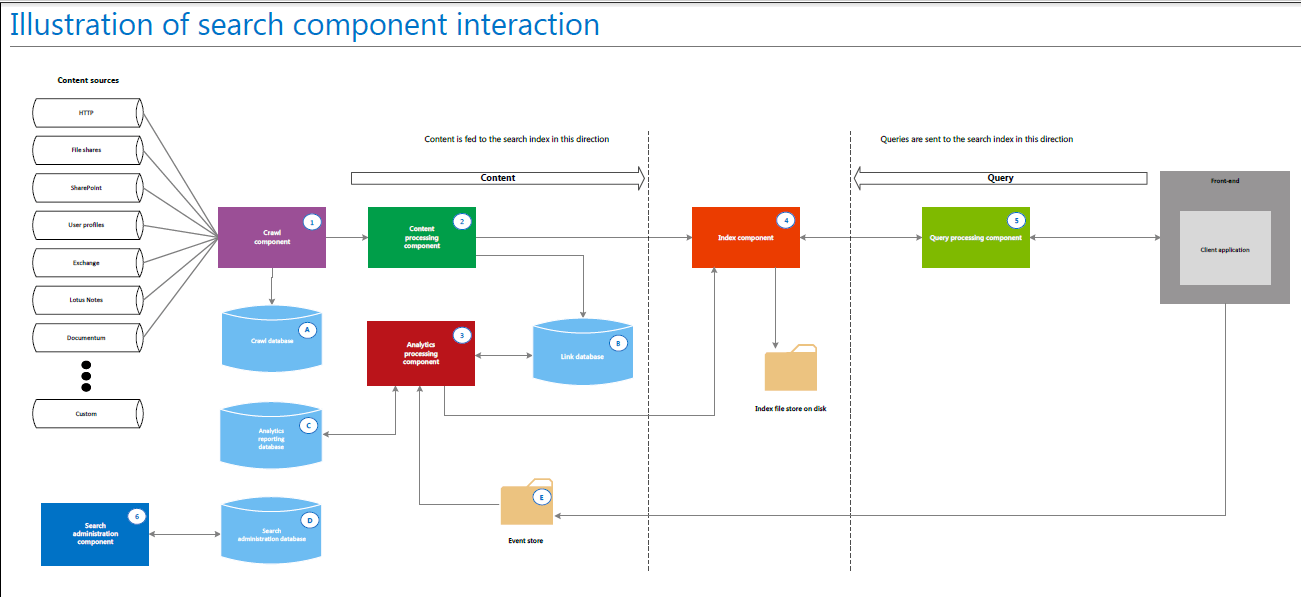
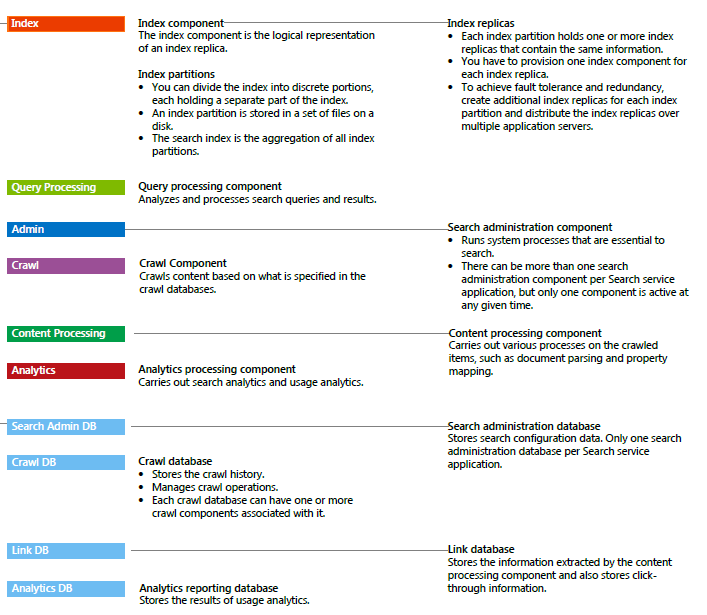
SEARCH COMPONENT INTERACTION

Crawl and component processes

The crawl and content processing architecture includes the crawl component, crawl database and content processing component. Both search components can be scaled out based on crawl volume and performance requirements.

About the crawl component:

The crawl component is responsible for crawling content sources. It delivers crawled items – both the actual content as well as their associated metadata – to the content processing component.·

The crawl component invokes connectors or protocol handlers that interact with content sources to retrieve data. Multiple crawl components can be deployed to crawl simultaneously.·

The crawl component uses one or more crawl databases to temporarily store information about crawled items and to track crawl history.

About the crawl database:

The crawl database contains detailed tracking and historical information about crawled items.·

This database holds information such as the last crawl time, the last crawl ID and the type of update during the last crawl.

About the content processing component:

The content processing component is placed between the crawl component and the index component. It processes crawled items and feeds these items to the index component

The content processing component transforms crawled items into artifacts that can be included in the search index by carrying out operations such as document parsing and property mapping.·

Both the content processing component and the query processing component perform linguistics processing. Examples of linguistics processing during content processing are language detection and entity extraction.·

The content processing component writes information about links and URLs to the link database.

Index and query processes

The index and query architecture includes the index component, index partition, and query processing component, all of which can be scaled out based on content volume, query volume, and performance requirements.

About the index component:

An index component is the logical representation of an index replica. In the search architecture, you have to provision one index component for each index replica.

The index component receives processed items from the content processing component and writes those items to an index file.

The index component receives queries from the query processing component and provides results sets in return.

Queries are sent to the index replicas through the query processing component. The system routes and load balances the incoming queries to the index replicas.

About the index partition· 

An index partition is a logical portion of the entire search index. The search index is the aggregation of all index partitions.

About the query processing component· 

The query processing component is between the search front-end and the index component.

The query processing component analyzes and processes search queries and results.

Both the query processing component and the content processing component perform linguistics processing. Examples of linguistics processing during query processing are word-breaking and stemming.

When the query processing component receives a query from the search front-end, it analyzes and processes the query to attempt to optimize precision, recall, and relevancy. The processed query is then submitted to the index component.

The index component returns a result set based on the processed query back to the query processing component, which in turn processes that result set before sending it back to the search front-end.

Search administration 

Search administration is composed of the search administration component and its corresponding database.

About the search administration component:

The search administration component is responsible for running a number of system processes that are essential to search.

This component carries out provisioning, which is to add and initialize additional instances of the other search components.

About the search administration database

The search administration database stores search configuration data, such as the topology, crawl rules, query rules, and the mappings between crawled and managed properties.

Analytics processes 

The analytics architecture consists of the analytics processing component, analytics reporting database and link database.

About the analytics processing component

The analytics processing component performs two types of analyses: search analytics and usage analytics. This component uses information from these analyses to improve search relevance, create search reports, and generate recommendations and deep links.

Search analytics is about extracting information such as — links, the number of times an item is clicked, anchor text, data related to people, and metadata – from the link database. This information is important to relevance.

Usage analytics is about analyzing usage log information received from the front-end via the event store. Usage analytics generates usage and statistics reports.

The results from the analyses are added to the items in the search index. In addition, results from usage analytics are stored in the analytics reporting database.

About the link database:

The link database stores information extracted by the content processing component. In addition, it stores information about search clicks; the number of times people click on a search result from the search result page. This information is stored unprocessed, to be analyzed by the analytics processing component.

About the analytics reporting database

The analytics reporting database stores the results of usage analytics.· In addition, the analytics reporting database also stores statistics information from the analyses. SharePoint uses this information to create Excel reports that show different statistics.

About the event store

The event store holds usage events that are captured on the front-end, such as the number of times an item is viewed. These usage events are stored as log files on the application server that hosts the analytics processing component.

search Component2

search Component