create add a content database in sharepoint 2019

create add a content database is the most common and frequent task in sharepoint 2019 for an administrator. Tasks during sharepoint migration, database upgrade, back up restore of content database, admin follows one of task to add a content database in web application. We can follow manual process of from sharepoint central admin UI method or by using powershell. So in this post will discuss how to create content database.

Advertisements

add a content database in sharepoint using UI method

Follow the step by step procedure to add a content database to web application.

  • Open sharepoint central admin.
  • Click on “Application Management” from left navigation.
  • Click on “Manage content databases” present under “Database”.
manaage content databases in shaarepoint 2019
Advertisements
  • Click on “Add a content database”.
Add a content database in sharepoint 2019
Advertisements
  • Enter “Database Server” name.
  • Enter “Database Name” present under “Database Name and Authentication”.
  • Enter “Number of sites before a warning event is generated”. Once number of sites reached to this number, will send warning mail to admin.
  • Enter “Maximum number of sites that can be created in this database”. This would be the maximum number of site collections can be created. Finally click on “OK”.
database capacity settings database name
Advertisements
  • Content databse is created and available in sql db server as below.
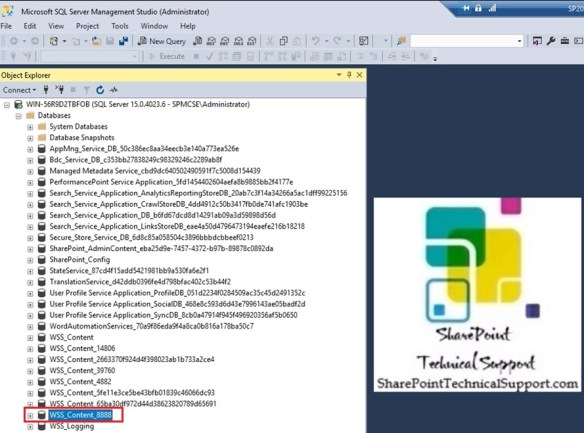
content database in sql database server
Advertisements
content database added to web application
Advertisements

create content database in sharepoint using powershell

We can use powershell command to add a content database instead of following multiple options from central admin. Run the powershell cmdlet New-SPContentDatabase as below to add a new content database.

New-SPContentDatabase "WSS_Content_9999" -DatabaseServer "WIN-56R9D2TBFOB" -WebApplication http://win-56r9d2tbfob:39760/ -MaxSiteCount 20 -WarningSiteCount 19
adding content database to web application using powershell
Advertisements
Advertisements
Advertisements

maximum number of site collections per content database

Set maximum number of site collections per content database

For Particular Requirement, client want to dedicate a database for a single site collection. When we create a site collection from central admin, site is placed automatically in any available content database. To prevent any other sites to be created on the particular content database, We can set maximum number of site collections on particular content database. Follow steps below :

  • Central Administration -> Application Management -> Management Content databases
  • Select our target web application in which the particular content database is attached
  • Pick the target database from the list
  • Now, in the “Manage Content Database Settings” page we can set the maximum number of sites for the content database.
maximum number of site collections
Add-PSSnapin Microsoft.SharePoint.PowerShell -ErrorAction SilentlyContinue

#Variables for processing
$WebAppURL ="https://atomic-temporary-119393429.wpcomstaging.com"
$MaxSiteCount=1
$WarningSiteCount = 0

#Get all content databases of the web application
$ContentDBColl = Get-SPContentDatabase -webapplication $WebAppURL

#Iterate through each database in the web application
foreach($Database in $ContentDBColl)
{
#Check the current No. of sites
if($MaxSiteCount -ge $Database.CurrentSiteCount)
{
#Set Maximum Sites, warning level Counts
Set-SPContentDatabase -Identity $Database.Name -MaxSiteCount $MaxSiteCount -WarningSiteCount $WarningSiteCount
Write-host "Max Sites Settings updated for the database:" $Database.name -ForegroundColor Green
}
else
{
write-host "MaxSiteCount must be > = current site count! No changes made in $($Database.Name)" -ForegroundColor Red
}
}

Set Maximum Number of Site Collections in SharePoint Content Database using PowerShell

For Particular Requirement, client want to dedicate a database for a single site collection. When we create a site collection from central admin, site is placed automatically in any available content database. To prevent any other sites to be created on the particular content database, We can set the maximum number of sites limit.

To set maximum number of site collections on a particular content database, navigate to:

  • Central Administration >> Application Management >> Management Content databases
  • Select our target web application in which the particular content database is attached
  • Pick the target database from the list
  • Now, in the “Manage Content Database Settings” page we can set the maximum number of sites for the content database.

set-max-number-of-site-collections-in-a-content-database

Add-PSSnapin Microsoft.SharePoint.PowerShell -ErrorAction SilentlyContinue

#Variables for processing
$WebAppURL =”https://sharepointtechnicalsupport.com”
$MaxSiteCount=1
$WarningSiteCount = 0

#Get all content databases of the web application
$ContentDBColl = Get-SPContentDatabase -webapplication $WebAppURL

#Iterate through each database in the web application
foreach($Database in $ContentDBColl)
{
#Check the current No. of sites
if($MaxSiteCount -ge $Database.CurrentSiteCount)
{
#Set Maximum Sites, warning level Counts
Set-SPContentDatabase -Identity $Database.Name -MaxSiteCount $MaxSiteCount -WarningSiteCount $WarningSiteCount
Write-host “Max Sites Settings updated for the database:” $Database.name -ForegroundColor Green
}
else
{
write-host “MaxSiteCount must be > = current site count! No changes made in $($Database.Name)” -ForegroundColor Red
}
}