create fast site collection is a new feature introduced in SharePoint 2019. Create a new site time can be reduced to half compared to New-SPSite PowerShell cmdlet by this feature. This fast site creation feature operates directly at the DB level, witpout passing to Object Model, and saving several round trips between database server and sharepoint server. So in this post we will discuss all about how to create site collection using fast site creation feature in sharepoint 2019.
Each site collection is associated with a blank template called a “site master”. Creating fast site, actually copies that site from DB and copies to destination site.
Fast site creation is supported with below site templates only.
- OneDrive personal site – SPSPERS#10
- Modern Team site – STS#3
- Communication site – SITEPAGEPUBLISHING#0
You can follow my post Get template id sharepoint site with powershell to get list of templates in sharepoint 2019.
Fast creation enabled site collection templates can get using the powershell cmdlet Get-SPWebTemplatesEnabledForSiteMaster
Get-SPWebTemplatesEnabledForSiteMaster
Get-SPWebTemplatesEnabledForSiteMaster
Disable-SPWebTemplateForSiteMaster
Powershell command to disable site template, enabled to create fast site collection is Disable-SPWebTemplateForSiteMaster.
Disable-SPWebTemplateForSiteMaster -Template STS#3
Enable-SPWebTemplateForSiteMaster
Powershell command to enable site template for fast site creation is Enable-SPWebTemplateForSiteMaster.
Enable-SPWebTemplateForSiteMaster -Template STS#3
New-SPSiteMaster
We can create a new Site Master using a site template by powershell command New-SPSiteMaster.
New-SPSiteMaster -Template STS#3 -ContentDatabase "WSS_Content_44179"
Site Master id stored table in content database sql server
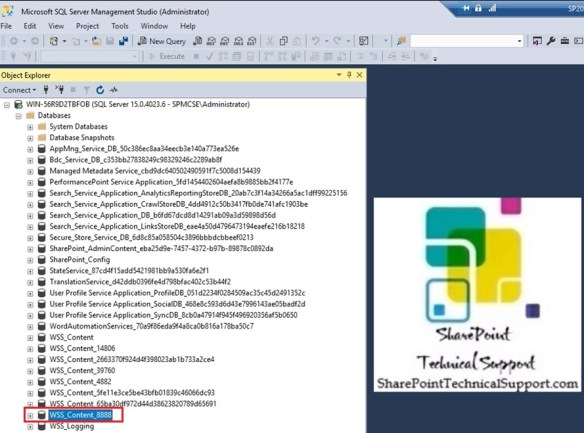
SIte master created is actually stored in content database sql server database. We can open sql db, expand the contnet database, expand and identify the table dbo.SiteMasters.

Get-SPSiteMaster
This PowerShell cmdlet Get-SPSiteMaster returns a reference to the site master associated with a content database.
Get-SPSiteMaster -ContentDatabase "WSS_Content_44179"
Remove-SPSiteMaster
This PowerShell cmdlet Remove-SPSiteMaster deletes site master from content database.
Remove-SPSiteMaster -ContentDatabase "WSS_Content" -Siteid "2a534455-1369-4f1e-bcf9-7e3feaf2a801"

Fast site creation using powershell in a content database
we can use below powershell command to create fast site using site master present under a content database.
New-SPSite http://win-q2repghf9du:44179/sites/SharePointTech -Template "STS#0" -ContentDatabase "WSS_Content_44179" -OwnerAlias "SPMCSE\Administrator" -CreateFromSiteMaster