I was getting access denied error while creating content type policy template in sharepont online. i tried the solution as below to resoleve the issue. let’s disucss how to resolve access denied content type policy templates error. the solution is applicable for the error Access denied uploading template to content type.
Navigate to site settings in sharepoint and click on “content type policy template” to create a custom policy template.
Advertisements
site settings in sharepoint
Advertisements
Error “access denied content type policy templates” screenshot as below
access denied error while creating content type policy templates
Advertisements
Solution
Enable below settings in sharepoint admin center.
Allow users to run custom script on personal sites
Allow users to run custom script on self-service created sites
enable custom script sharepoint online
Advertisements
Enable Custom script in site
next step to enable cutom script in site using powershell
I remembered once faced an error where user having Contribute permission to folder in the library but getting access denied. This issue in entire site collection. User with unique permission to list, folders are not able to view the page. The issue resolved by changing ViewFormPagesLockDown feature to Disable. Below article describes all about the information about ViewFormPagesLockDown feature Unable to setup uniquely secured permission.
For content to be available for anonymous access, the following must be configured: 1. The site or site collection must be configured to allow anonymous access. 2. At least one zone in the Web application must be configured to allow anonymous access. Enable anonymous access only for Web applications that require unauthenticated access. If you want to use authentication for personalization, implement forms authentication by using a simple database authentication provider
Allows anonymous users to only view the Publishing pages, not any of the form or view pages (DispForm.aspx, AllItems.aspx). if your portal wasn’t born as a publishing portal, all anonymous users will have access to AllItems.aspx, DispForm.aspx and other pages that you don’t want outside users to see.
Disallows anonymous access to pages in the “_layouts” directory that inherit from LayoutsPageBase.
By default, all publishing sites have the feature called “ViewFormPagesLockDown” activated, but not on the Collaboration Portal site or Team sites’ definition. Without this Feature active on anonymous public sites, any users – including search engines like Google will be able to view (and crawl) SharePoint out-of-box pages which are tied to lists and webs that allow viewing by anonymous users.
Yes, these users might not have the ability to do anything, but you may not want anonymous users to view the form pages.
So this lockdown feature is useful if a site collection that is configured for Anonymous access on a Publishing site and you want to lock it down so Anonymous users don’t have access to the Forms page (e.g. http://ServerName/Pages/Forms/AllItems.aspx)
If a library or subsite that has broken permission inheritance, and permission is given to user or group to only that library or site. In this case to view the contents, user/group must have some access to root web else user/group cannot access although they have permission.
One more scenario where Publishing Portal configured for Anonymous access where users are unable to post comments (which are stored in a List) on a blog site then the lockdown feature can be disabled, which will result in allowing Anonymous users to post comments. Normally, people won’t have problem posting comments on a blog site unless it is a Publishing site, in which case they will get a prompt to enter user credentials. In such a scenario you can disable the lockdown feature.
If you want to place your custom application pages inside the _layouts directory, which anonymous users must hit, there’s the UnsecuredLayoutsPageBase class you can use as the base class of your page, and there’s always just the Page class as in a standard ASP.Net application page.
When enabled permissions for users with limited access permissions, such as anonymous users, are reduced, preventing access to application pages including item properties or list views.
If a document, folder, or library has unique permission, those users will not able to 1. Use the drag and drop feature to upload documents 2. Brows to the affected folder 3. Use the shared with feature 4. Open document in the office client 5. Some call out features on documents and folders will not render as expected.
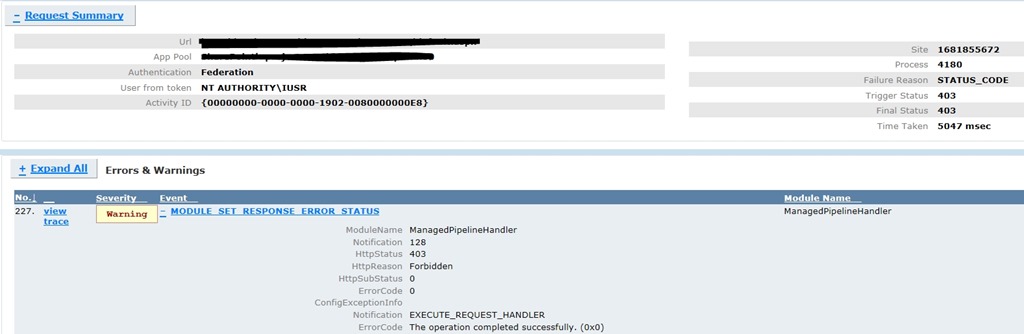
403 forbidden error fix done. Received below error while browsing SharePoint web app.
The website declined to show this webpage
HTTP 403
Most likely causes:
This website requires you to log in
if we create a copy of the web.config file, rename the web.config file, refresh the home page, we receive an “HTTP 404 – Page Not Found” error.
Rename the web.config file back and refresh the page. The site is browse able for a while before failing after some time, We see the following error in Failed Request Tracing.
A procmon trace captured while accessing the web app from the server showed the following:
This issue usually occurs when a request from an authenticated user without local admin rights results in a failed read of the /BIN directory by the impersonating w3wp.exe (IIS worker process for ASP.NET) process.This behavior is typically associated with lack of permissions to the temporary folder /BIN where ASP.Net assemblies are Just In Time (JIT) compiled.
Resolution
The solution is to ensure that the Authenticated Users or \Users group (which usually contains DOMAIN\Users group) has Read & Execute, List Folder Contents and Read permissions on the /BIN folder below
Follow the steps below to grant the required permissions:
Open Windows Explorer and navigate to the /bin directory of your web application
Right-click on the folder and click on Properties
Go to Security tab and click on Edit
Click on Add and add the local server group Authenticated Users or \Users (this usually contains DOMAIN\Users group).
Select the Read & Execute, List Folder Contents and Read permissions (if you are planning to add Everyone to the /bin folder, grant Read permissions only)
Click OK to apply the new settings
Refresh the page and we should be able to browse to the site.
More Information
If an administrator accesses the site/feature that caused the error, the subsequent requests from non-administrators would succeed. This behavior is typically associated with lack of permissions to the temporary folder where ASP.Net assemblies are Just In Time compiled.
The freb trace shows a 403.0 for ManagedPipelineHandler
It seems to go through quite a few ASPNet events – but happens during the ASPNetPageRender – it goes to the ASPNetPageRender Enter, then ASPNetHTTPHandler Leave.Only then does it get a 403.0 which is not an official RFC error. The first sub-status for 403 is 403.0.
Application pool in Classic or Integrated mode
Application Pool in Classic Mode – In this case, we can configure a Wildcard mapping for ASPNET_ISAPI.dll at the website level. That would propagate to child virtual directories. That should not need any further modifications at the virtual directory level.
Application Pool in Integrated Mode – In this case, all relevant virtual directories would need individual modifications. They need to be set for specific handler.