change list url in sharepoint 2019 to create duplicate list

change list url in sharepoint 2019 to create duplicate list is an important task for an administrator. When list view threshold of a list is crossing the limit, user want to create similar list with different name. we can copy list items form one list to another list in this situation. We can follow other ways as well as below.

Advertisements
  • Export list using powershell and import in UAT. Else we can backup content database and restore using powershell in UAT as well.
  • Rename list and change list url in sharepoint using powershell.
  • Export list in UAT using powershell and import list in PROD using powershell. Else you can follow recovering list from unattached content database.
Advertisements

Export list using powershell and import list in SharePoint UAT

Follow the blog post export import list library sites in sharepoint to export list from PROD and import in UAT.

Advertisements

Backup content database in sharepoint and restore using powershell in UAT

Follow the blog post dismount Mount content database in sharepoint 2019 using powershell to do back up and restore content database.

Advertisements

Rename list and change url of list using powershell

Once list is moved to UAT, we can use below powershell for list url change. Modifying title of list using UI method will not update the url, it will remain unchanged, So we have to using powershell method change list address.

List name before rename
list url before change
Advertisements
$liUrlOriginal="/Lists/Budget2020";
$liUrlNew="/Lists/Budget2020Archieved";
$web= Get-SPWeb -Identity http://spmcse-sp19:37985/sites/SPMCSE
$li=$web.GetList($web.Url + $liUrlOriginal)
$rootFolder=$li.RootFolder;
$rootFolder.MoveTo($web.Url + $liUrlNew)
change list url in sharepoint using powershell
list url after change
Advertisements

Export list in sharepoint UAT using powershell and import list in PROD

Follow the blog post export import list library sites in sharepoint to export list from UAT and import in PROD. Else you can follow, list recovery method from unattached content database as described below.

Advertisements

Recover list from an unattached content database in sharepoint 2019

You can follow export import list method as mentioned above or you can use recovering a specific list from unattached content database method.

Advertisements

change sharepoint list url completed. Duplicate list or a similar list with reference to another list in same site is created in production environment. Save list as template including content is one of the solution to create duplicate list but there will be error if the number of items is very high, especially for financial sites, we can follow these process.

Follow the video below, to understand better in video format.

Advertisements

create add a content database in sharepoint 2019

create add a content database is the most common and frequent task in sharepoint 2019 for an administrator. Tasks during sharepoint migration, database upgrade, back up restore of content database, admin follows one of task to add a content database in web application. We can follow manual process of from sharepoint central admin UI method or by using powershell. So in this post will discuss how to create content database.

Advertisements

add a content database in sharepoint using UI method

Follow the step by step procedure to add a content database to web application.

  • Open sharepoint central admin.
  • Click on “Application Management” from left navigation.
  • Click on “Manage content databases” present under “Database”.
manaage content databases in shaarepoint 2019
Advertisements
  • Click on “Add a content database”.
Add a content database in sharepoint 2019
Advertisements
  • Enter “Database Server” name.
  • Enter “Database Name” present under “Database Name and Authentication”.
  • Enter “Number of sites before a warning event is generated”. Once number of sites reached to this number, will send warning mail to admin.
  • Enter “Maximum number of sites that can be created in this database”. This would be the maximum number of site collections can be created. Finally click on “OK”.
database capacity settings database name
Advertisements
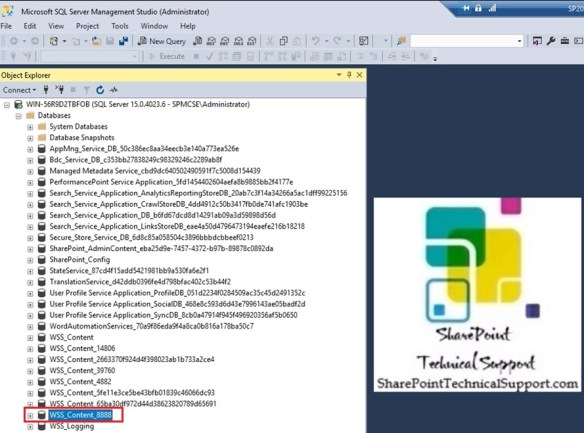
  • Content databse is created and available in sql db server as below.
content database in sql database server
Advertisements
content database added to web application
Advertisements

create content database in sharepoint using powershell

We can use powershell command to add a content database instead of following multiple options from central admin. Run the powershell cmdlet New-SPContentDatabase as below to add a new content database.

New-SPContentDatabase "WSS_Content_9999" -DatabaseServer "WIN-56R9D2TBFOB" -WebApplication http://win-56r9d2tbfob:39760/ -MaxSiteCount 20 -WarningSiteCount 19
adding content database to web application using powershell
Advertisements
Advertisements
Advertisements

unattached content database recover contents list library

unattached content database – recover contents list library from is required while moving list or library as content migration. You can recover files from content database that is not attached to any web application in sharepoint 2019. Recovering data from content database unattached will restore only specific list library in sharepoint site. Follow the step by step procedure to recover list library from sharepoint content database not attached.

Advertisements
  • Navigate to central admin in sharepoint 2019.
  • Select “Backup and Restore” from left navigation and click on “Recover data from an unattached content database” present under “Granular backup”.
recover contents list library from unattached content database
Advertisements
  • Select “Database Server”.
  • Select “Database Name” which is unattached to any web application.
  • select the radio button “Export site or list”, if you want to export list or library from unattached content database.
  • Choose radio button “Backup site collection” to export site collection from content database unattached.
recover files from content database that is not attached
Advertisements
  • Select site collection present in the unattached content database.
  • choose site from the site collection selected above.
  • Select list or library that you want to recover or restore.
select site list library in sharepoint from contact database unattached
Advertisements

After that, follow the same procedure described in previous post “export import list library sites in sharepoint” to import list or library described once export is completed.

Import-SpWeb -Identity "site url in which you want to import list" -Path "exported item saved location" -IncludeUserSecurity -UpdateVersions Overwrite -verbose

Import-SpWeb -Identity "site url in which you want to import library" -Path "exported item saved location" -IncludeUserSecurity -UpdateVersions Overwrite -verbose
Advertisements

watch the video to get in detail step by step

Advertisements
Advertisements